


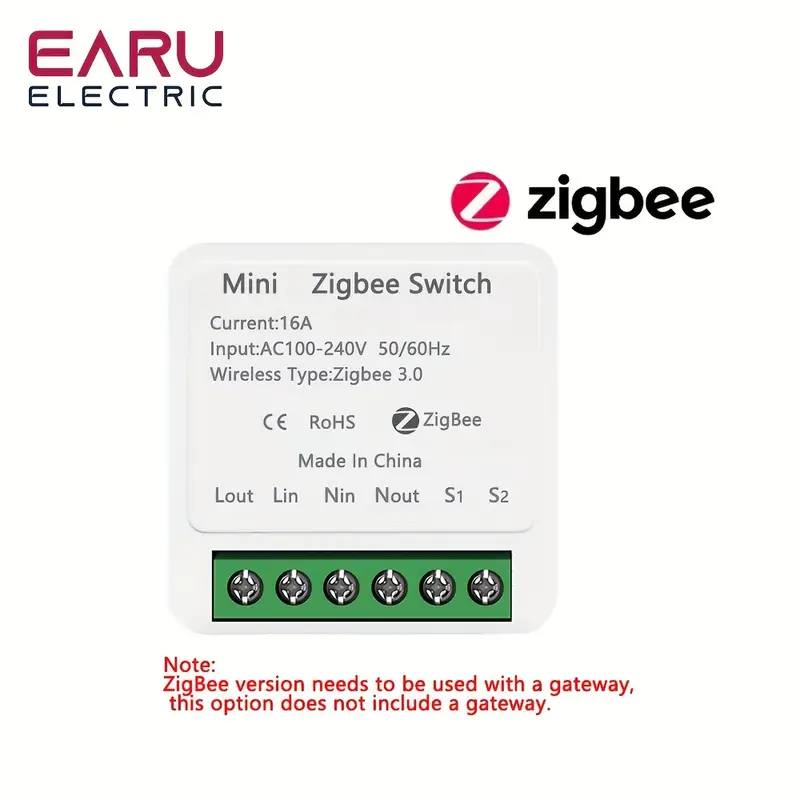
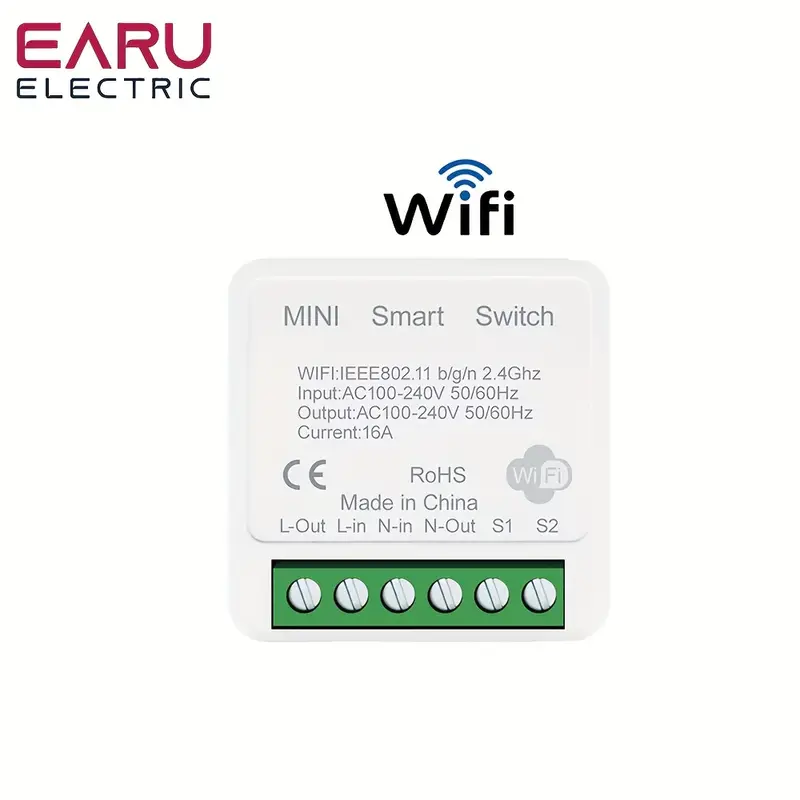
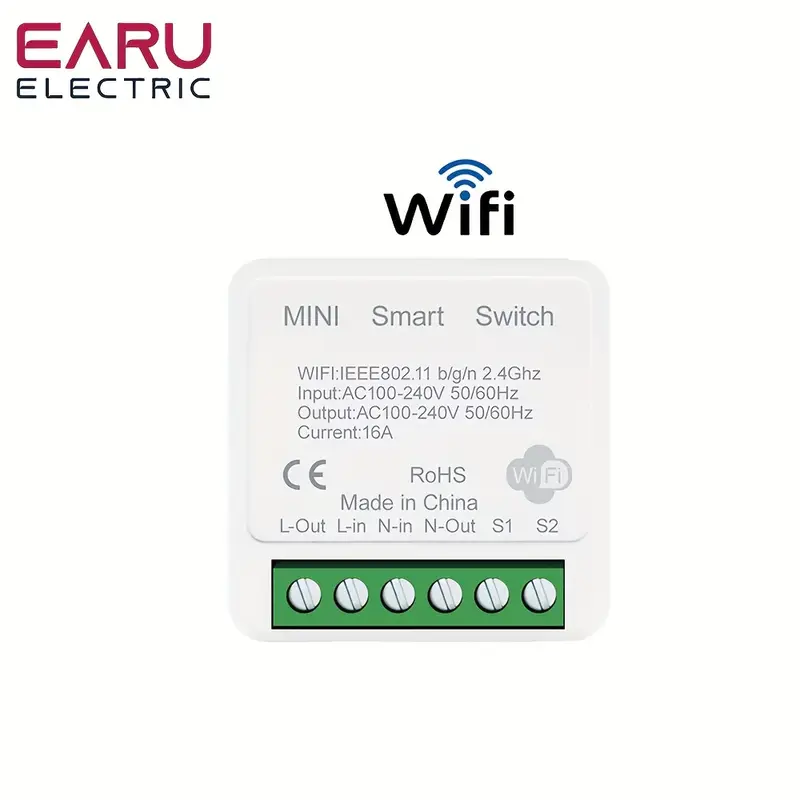
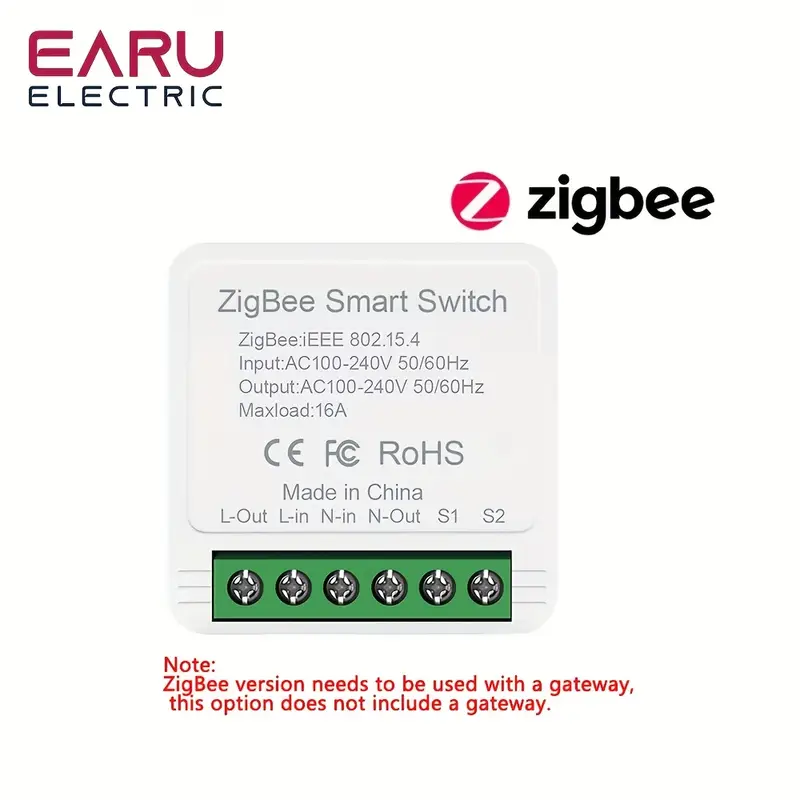
Connectivity Technology: Wi-fi
Water Resistance Level: Non-waterproof
Control Method: App control
Power Mode: Room electrical/hard wiring
Operating Voltage: 220V (included)-240V (included)
Battery Properties: Without Battery
Item ID: MH1152895
Origin: Zhejiang,China
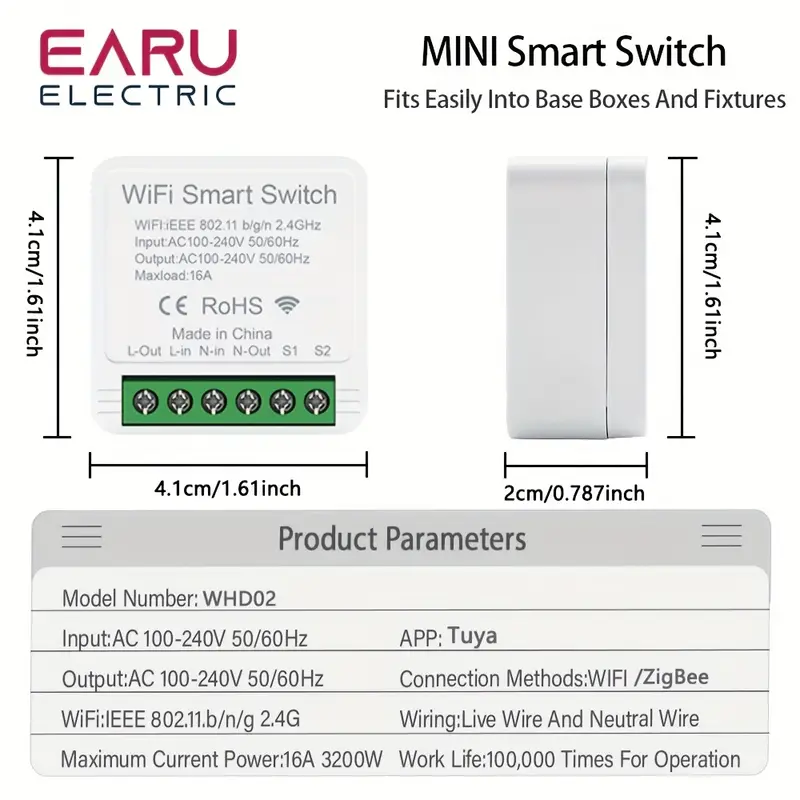
Learn about dimensions
Tuya 16A 2 Way Mini WiFi Smart For Switch Breaker Module Voi Wireless Control for Smart Home by Smart Life App Alexa Home
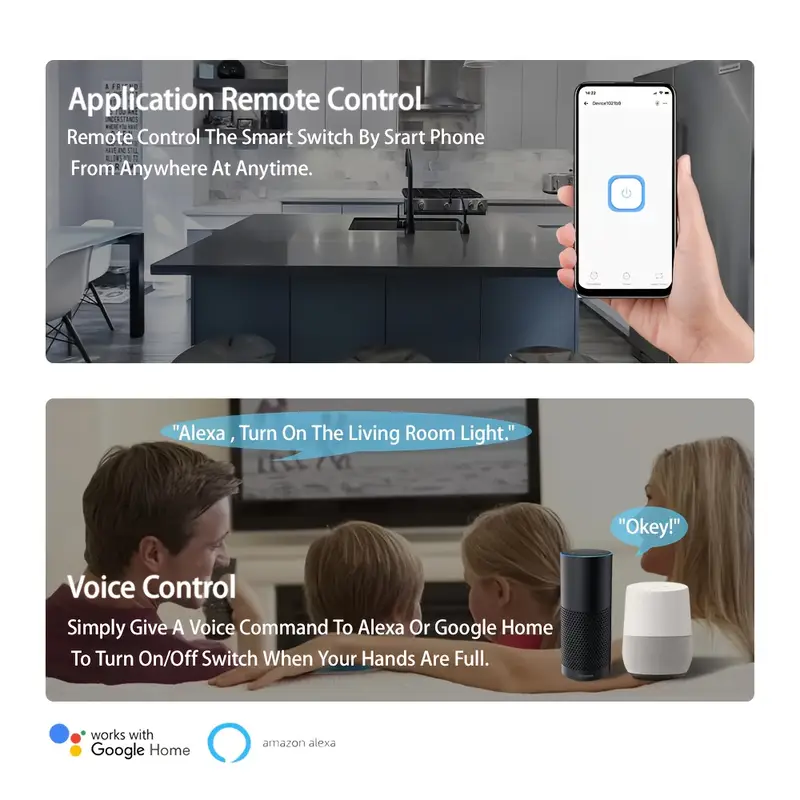
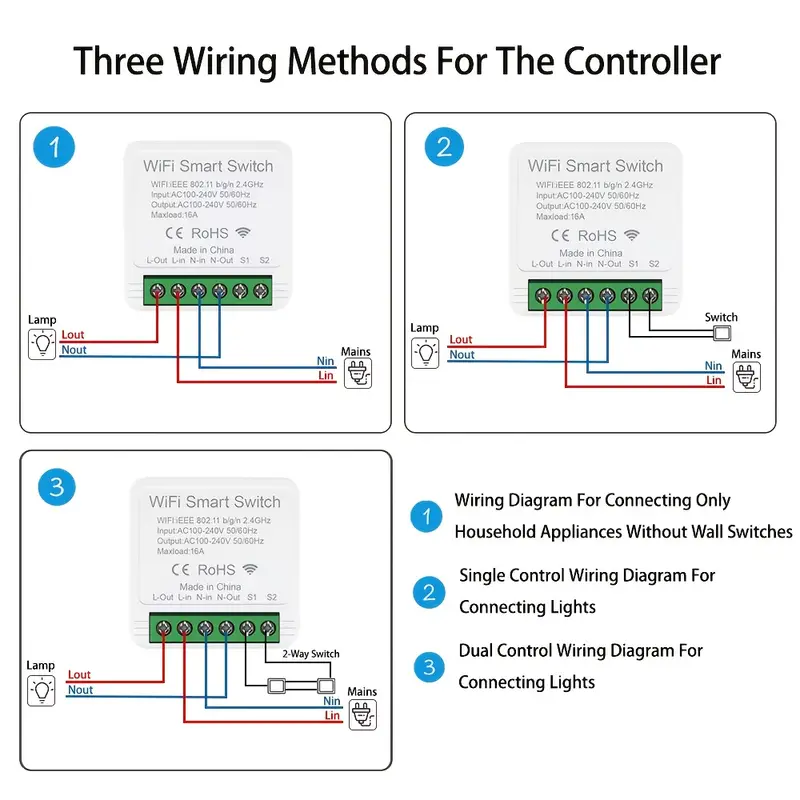
Main Feature:Easy repla your traditional For Switch to make it smart,also can make your exist 2 way For Switch smart also,just install 1 DIY smart For Switch,suit for EU/UK For Switch box,please comfirm the size before order.Wirelessly control wirelessly control your lights or devis by voi or automation using your smart phone and Alexa or assistants.
AC 100-240V 16A maximum load DIY For Switch Module can control a wide range of lights and appliansWi-fi control via your mobile phone 2.4G networks provides the needed connection to the DIY For Switch Module without the need of a separate HUB.
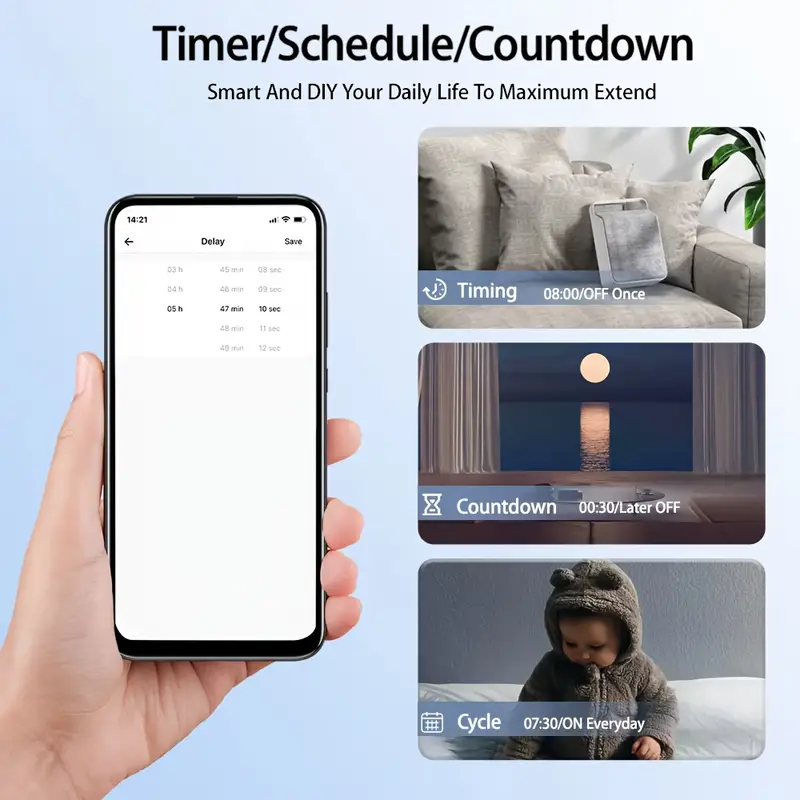
Uses popular”smart life/Tuya”For Android / ios app Versatile APP Allows for full control of your lights or compatible applians. multiple program options allow you to plan the exact time to turn lights / fans / etc. On/Off automatically.Give your devis the ultimate power on/off smart makeover,Simply wire this Do-It-Yourself Module between your devi and power sour to convert most any compatible product to a smart one.
Main Specificaton:Input Voltage:100V~240V 50/60HzWiring: Live wire and Neutral wireMaximum current:16AWiFi Standard: 2.4GHz 802.11 b/g/nApp Name: Tuya /Smart Life APP /Connection Mode: WiFi 2.4G / ZigbeeWork Life: 100,000 times for operation
User Guide:1.Start the devi using the “Smart Life” APP.2.Register for a Smart Life account.3.If you have a Smart Life account, just log in.4.Follow the markings on the cover of the devi for wiring.5.Turn on the devi after wiring is complete.The devi is turned on by default.Press and hold the button for about 5 seconds until the WiFi blue LED flashes rapidly.6. Enter the application and click the “+” at the top right of the page to enter the network connection page.7. Make sure the devi
Reviews
There are no reviews yet.